
What Would You Put on a 5-Key Macropad?
A practical guide to choosing five shortcuts and one dial for the repetitive tasks that slow down creators, developers and busy teams.
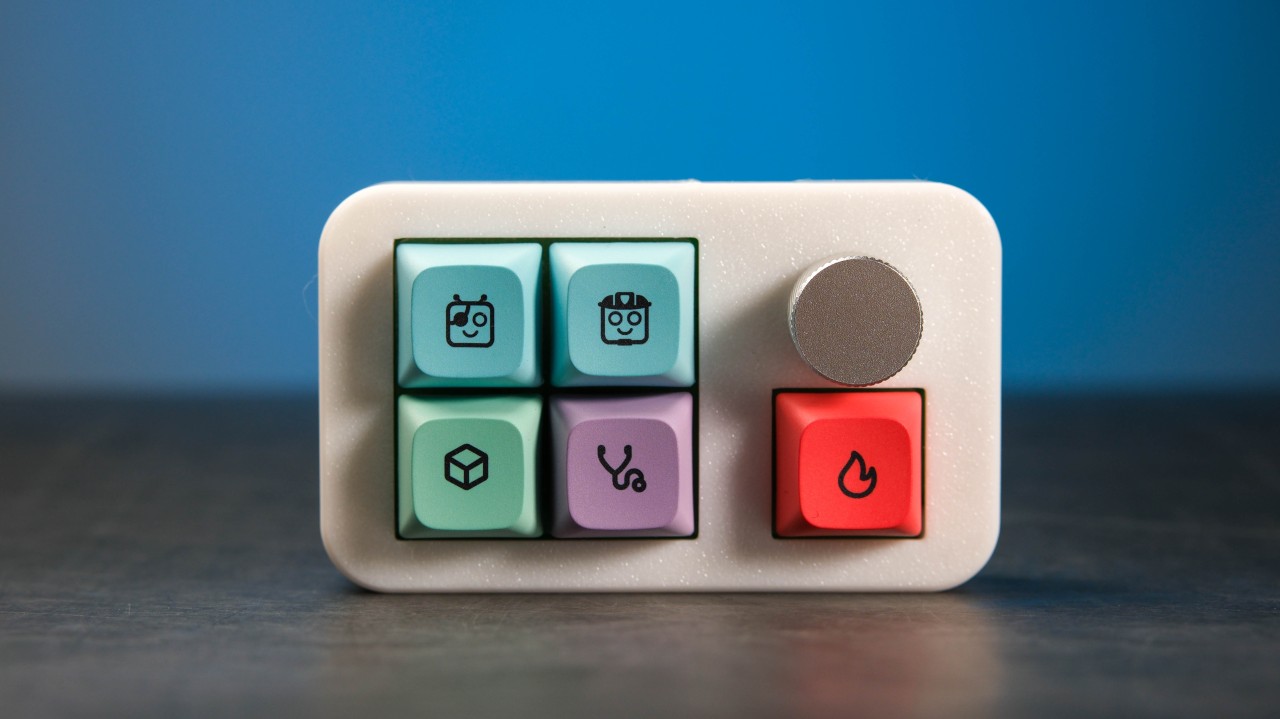
What a 5 Key Macropad Actually Does
A practical guide to choosing five shortcuts and one dial for the repetitive tasks that slow down creators, developers and busy teams.
Five keys do not sound like much. That is exactly the point.
A full keyboard gives you access to every command. A 5 key macropad gives you a small, deliberate set of controls for the actions you repeat all day. Add a rotary knob and the same compact device can also handle an adjustment such as volume, scrolling, zoom or timeline movement.
The useful question is not, "How many functions can we squeeze into it?" It is much simpler:
Which five actions deserve to be one tap away?
What a 5 Key Macropad Actually Does
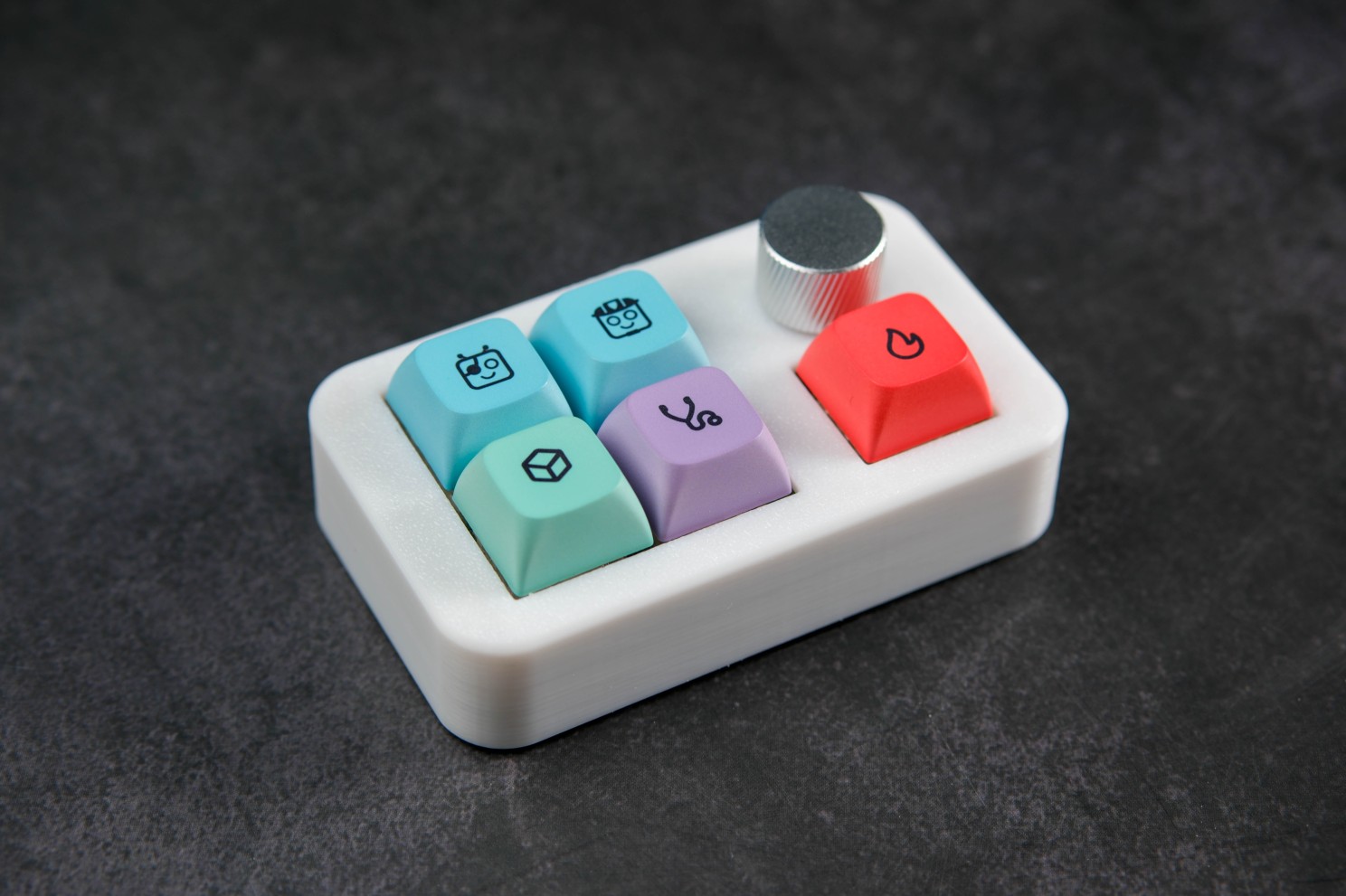
A macropad is a small companion keypad with programmable controls. Each key can be assigned to a normal keystroke, a keyboard shortcut or, depending on the device and its configuration software, a sequence of actions known as a macro.
That means one key might mute a microphone, another might open a frequently used tool, and another might trigger a shortcut that normally requires two or three keys. It does not replace the keyboard. It moves a few useful actions into a dedicated space where they are easier to see and reach.
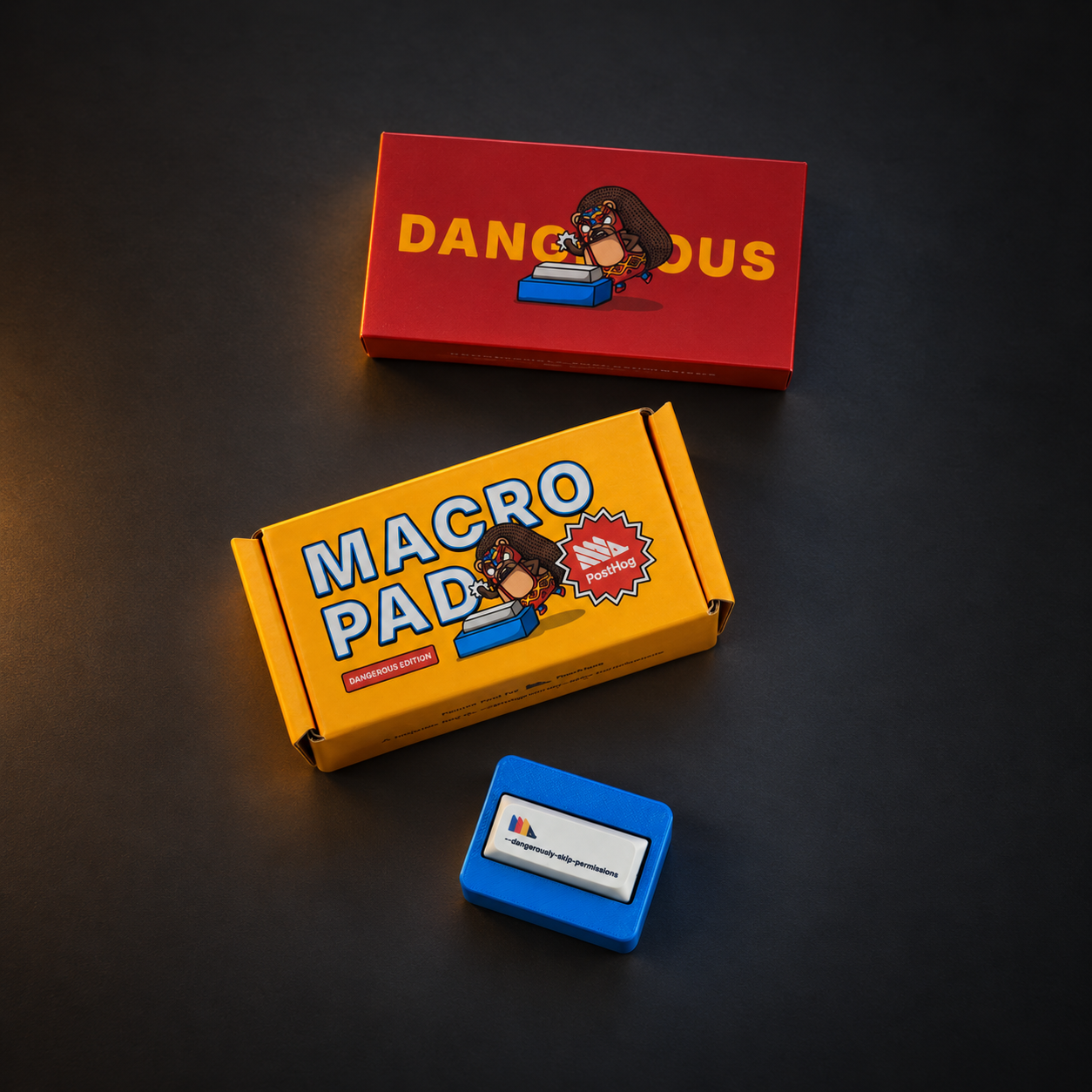
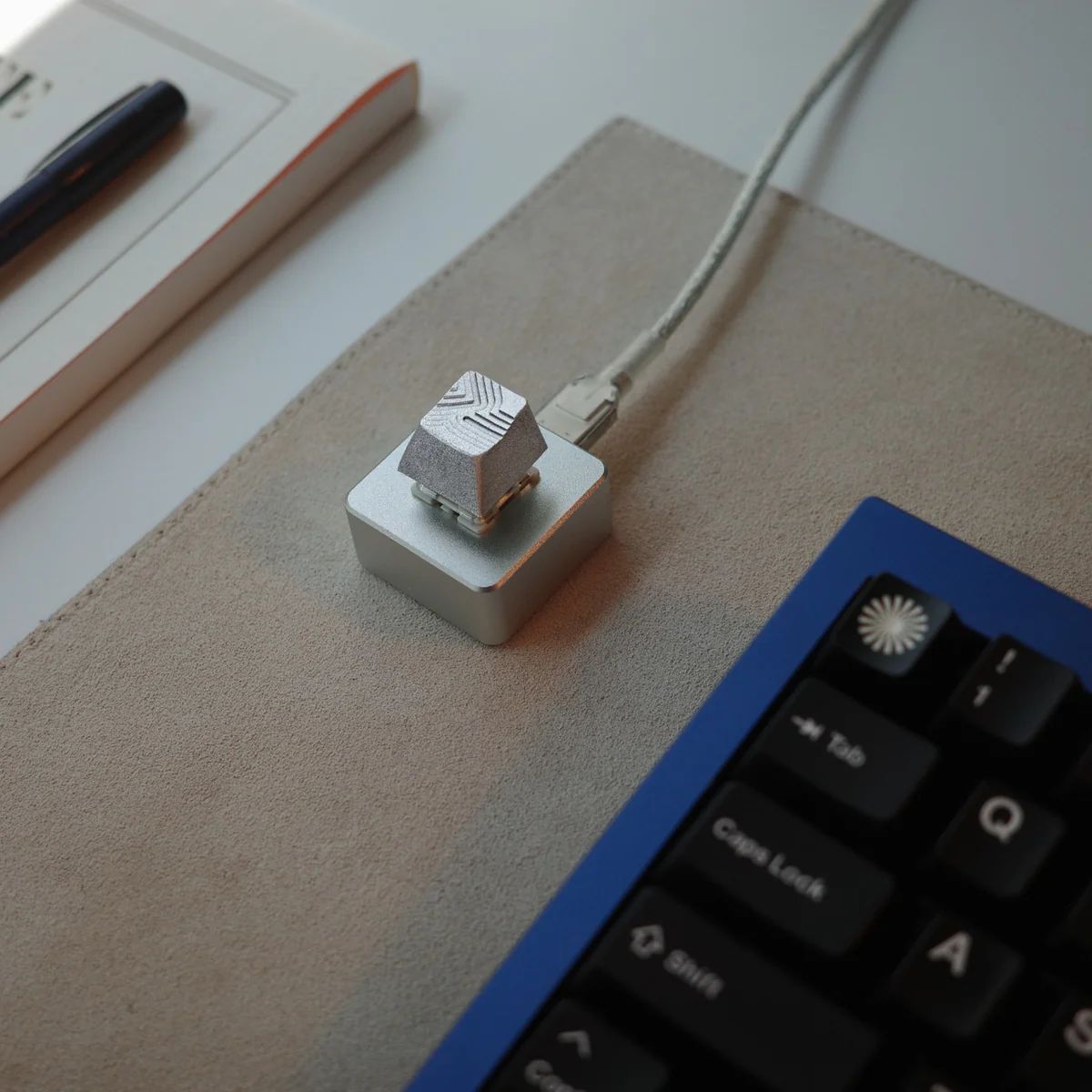
The compact format is part of the appeal. It can sit beside a keyboard without taking over the desk, and the controls can be labelled with icons that make sense for a particular team, application or campaign.
Find Your Five: From Observation to Framework
It is tempting to program the first five shortcuts that come to mind. A better setup begins with observation.
For a few days, notice the actions that repeatedly interrupt your flow. Look for tasks that are frequent, slightly awkward or easy to forget. They do not need to be technically difficult. Opening the same panel, muting a call or changing tools may take only a second, but those tiny interruptions add up because they happen again and again.
Three questions help narrow the list:
- Do I use this action every day? Frequent actions earn the easiest positions.
- Does it interrupt what my other hand is doing? A dedicated key can keep the mouse hand in place.
- Will I recognise it immediately? A control is only useful if its icon and purpose are obvious.
Once you have a shortlist, a five-part framework turns those loose observations into an actual layout:
- Recover: an action such as Undo that helps you correct a mistake quickly.
- Navigate: a shortcut for switching tools, views, tabs or applications.
- Prepare: an action that opens a panel, template, terminal or workspace.
- Finish: a common Save, Export or Capture command.
- Communicate: a meeting, microphone or frequently used message control.
This is a framework, not a rule. A video editor might use several keys for timeline actions. A developer may care more about tests, search and terminal access. Someone who spends the day in meetings may prefer controls for mute, camera and screen capture. What matters is that each key traces back to something you actually watched yourself repeat not a category you felt obligated to fill.
Two habits keep the layout honest after that. First, avoid assigning irreversible actions deleting files, sending payments, deploying live code to a single unconfirmed press; convenience should reduce friction, not remove safeguards. Second, keep watching after the pad is set up: if a key goes untouched for two weeks, it probably does not deserve its place, and if the candidate list keeps growing past five or six, that is usually a sign the workflow needs a larger control surface or an application-specific profile system, rather than more functions squeezed into the same five-key layout.
Give the Knob One Clear Job
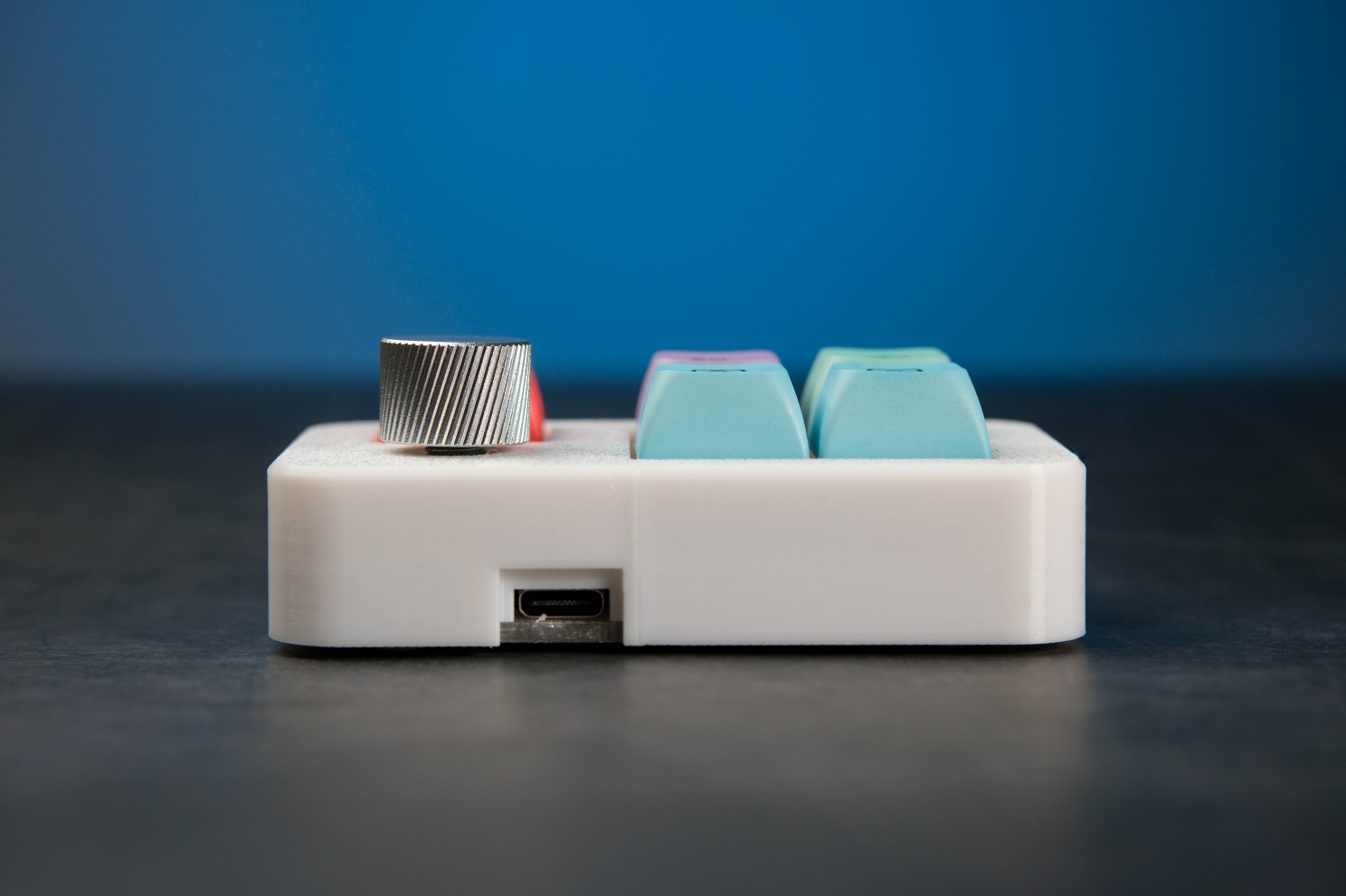
Keys are good for actions with a clear start and finish. A rotary knob is better suited to values that move up and down.
Useful examples include:
- System or application volume
- Timeline zoom or scrubbing
- Brush size
- Page or document scrolling
- Canvas zoom
Choose the adjustment you make most often and keep it consistent. A knob that changes purpose too frequently becomes harder to use without looking. The aim is to build familiarity, so the hand knows what to do before the user has to think about it.
The Framework at Work: Three Roles, One Method
The same five-part framework looks different once it meets an actual role. These examples are starting points the available assignments will depend on the operating system, application and programming method used but each one shows the framework bending to real work rather than being abandoned for it.
For Designers and Video Editors
Recover and Finish are the easy fits here: Undo catches mistakes, Export closes out the work. Navigate is the tool switch. Prepare shows up as a marker dropped on the timeline staking out a spot before you know what you'll do with it. Play/pause doesn't belong to any of the five categories; it earns its place purely through repetition, a reminder that the framework is a starting point, not a ceiling.
- Undo
- Switch tool
- Add marker
- Play or pause
- Export
- Knob: brush size, timeline zoom or scrubbing
The goal is not to move every shortcut onto a second device. It is to protect the few actions that repeatedly break concentration.
For Developers
Developers already work comfortably from a keyboard, so the layout leans hardest on Prepare a terminal and a reference panel, because getting into a working state often takes longer than the coding itself. The bigger shift is Finish: instead of Save or Export, it becomes Run tests or Start a build, the action that actually tells you whether the change works.
- Toggle terminal
- Open search
- Run tests
- Start a build
- Open a frequently used panel or reference
- Knob: scrolling, zoom or system volume
Commands with serious consequences should still require confirmation. A visible test or build key can be useful; a one-tap production deployment is usually a poor trade.
For Meetings and Everyday Work
Communicate takes over most of the pad here mute, camera and a focus routine cover the bulk of a meeting-heavy day. Everything else compresses: a screenshot key stands in for Recover, and Navigate, Prepare and Finish all collapse into a single notes key that opens the right document at the right time.
- Mute or unmute
- Camera on or off
- Take a screenshot
- Open calendar or notes
- Start a focus routine
- Knob: volume or document zoom
This is often the easiest way to introduce a programmable device to a mixed team, because the actions are familiar before anyone learns the word "macropad."
Design the Keycaps Around the Workflow
.jpeg)
Once the five keys and the knob's job are settled, what's left isn't choosing what the pad does , it's making that choice visible at a glance.
Start with the action, then design the icon. A clear symbol for mute, export or volume is more useful than decoration that needs an explanation. Keep enough contrast between the icon and keycap, and use colour to create hierarchy. One bright accent key, for example, can mark the action that matters most.
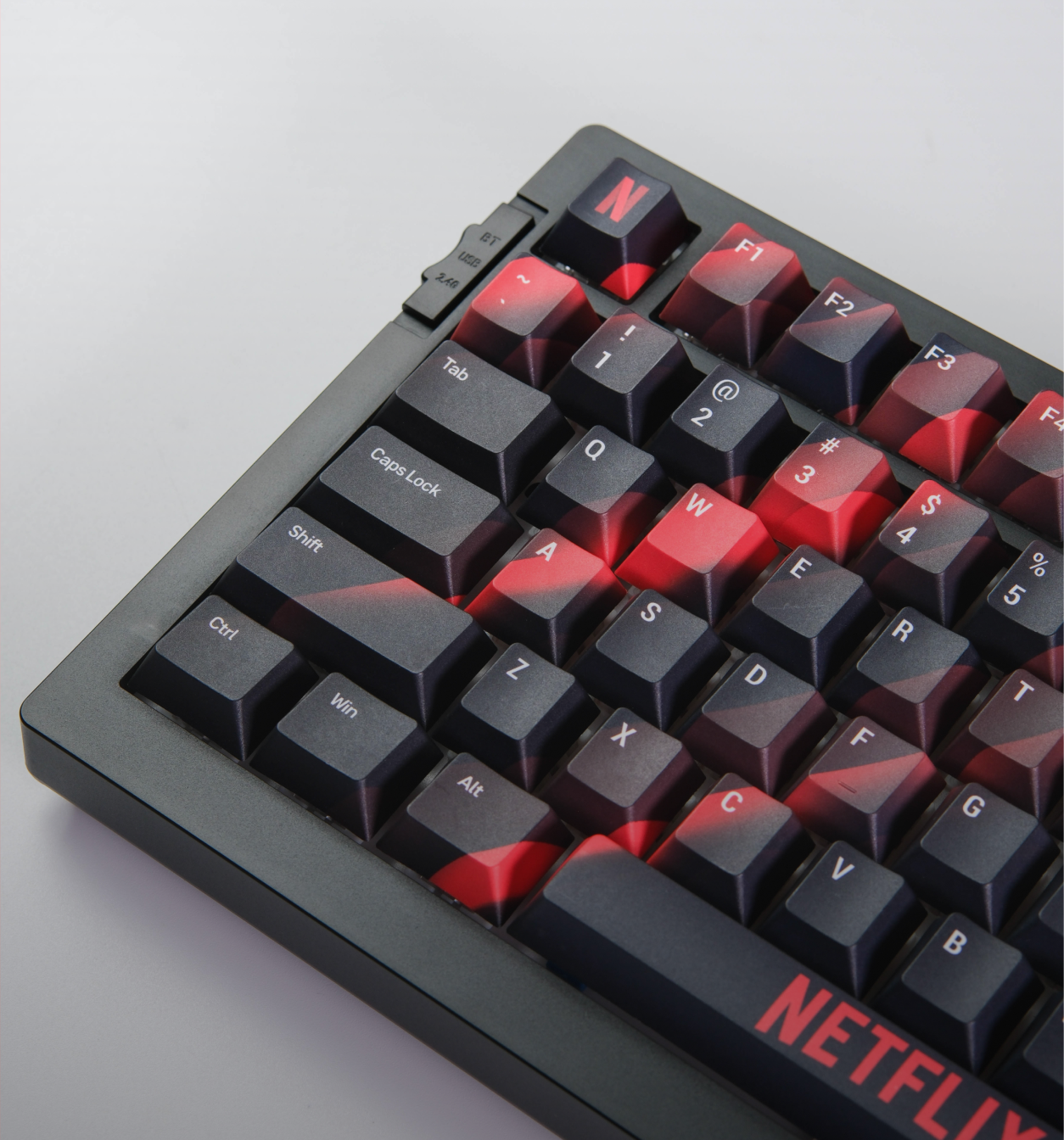
Branding can still be distinctive without covering every surface. The case colour, keycap palette, icon style and packaging can carry the identity together. When the product is easy to use first, the brand becomes part of a positive daily interaction.
Five Keys Are Useful When They Are the Right Five
The appeal of a small macropad is not that it can do everything. It is that it can make a few repeated actions feel immediate, tactile and personal.
Begin with the moments that interrupt the day. Choose five controls that remove genuine friction. Give the knob one clear purpose. Then build the labels, colours and physical design around that workflow.
The result is a compact desk tool that does not ask the user to change how they work. It simply puts the right actions closer.
Build a Macropad Around Your Workflow
Tell us the five actions your team repeats most. GoblinTechKeys can help translate them into a custom 5-key macropad with branded keycaps, colours and packaging.

Mission statement isn't a static asset you design once and forget. It is a live promise. In a fast-paced market where users have endless alternatives at their fingertips, authenticity isn't a design aesthetic—it’s the ultimate competitive advantage.
Mission statement isn't a static asset you design once and forget. It is a live promise. In a fast-paced market where users have endless alternatives at their fingertips, authenticity isn't a design aesthetic—it’s the ultimate competitive advantage.
Mission statement isn't a static asset you design once and forget. It is a live promise. In a fast-paced market where users have endless alternatives at their fingertips, authenticity isn't a design aesthetic—it’s the ultimate competitive advantage.